
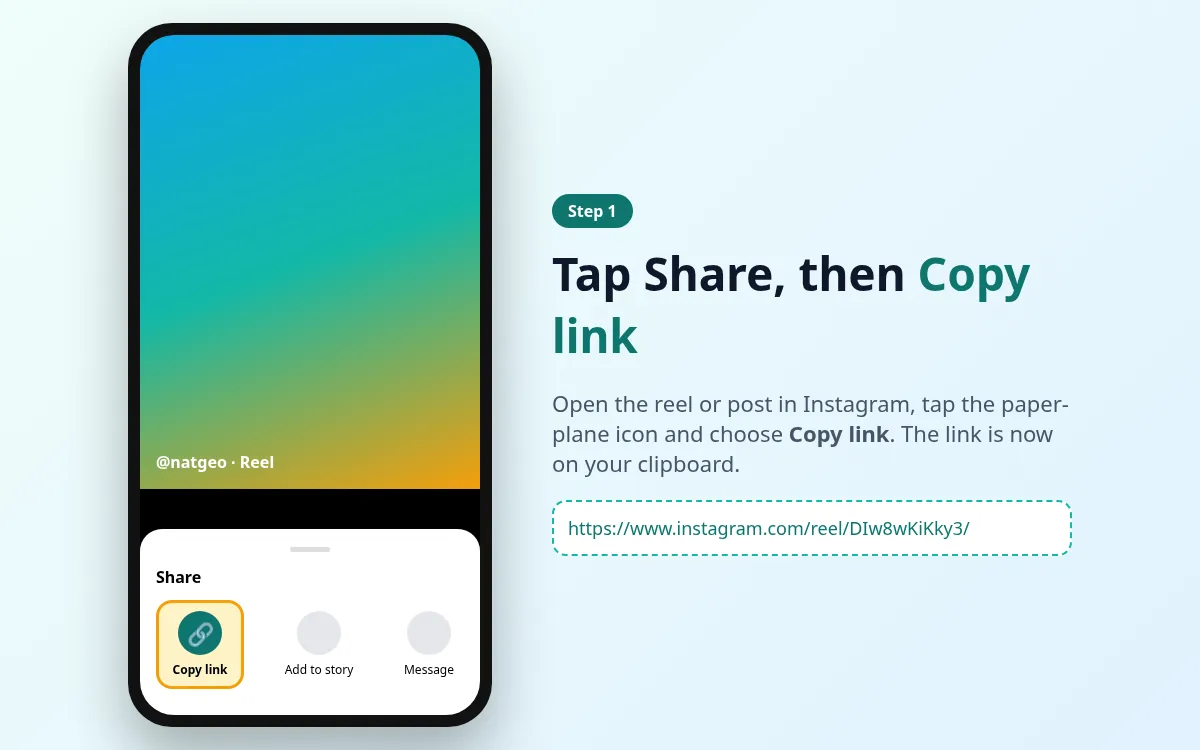
Copy the link
In Instagram, open the media, tap the paper-plane Share icon and choose Copy link.
A plain-English walkthrough of the IGLink method, plus device tips and common fixes.
No app installs. No account. Just copy, paste and save.
In Instagram, open the media, tap the paper-plane Share icon and choose Copy link.
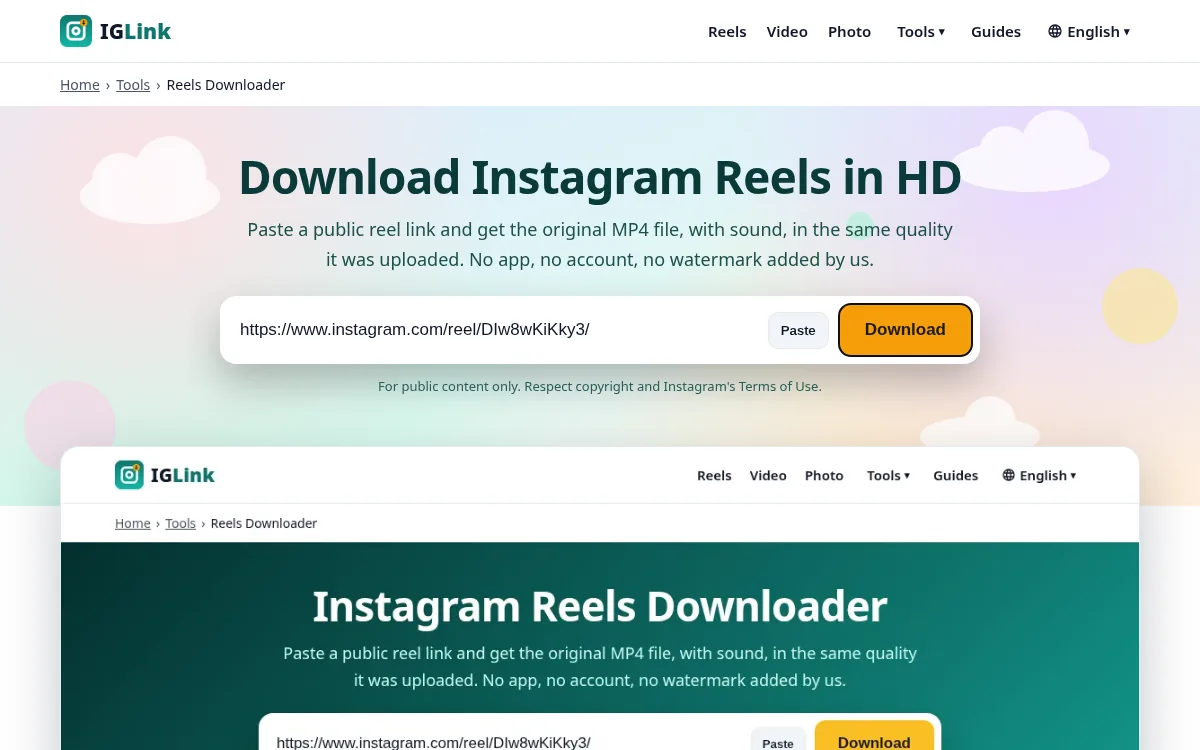
Come back to this page, paste the URL into the box and tap Download.
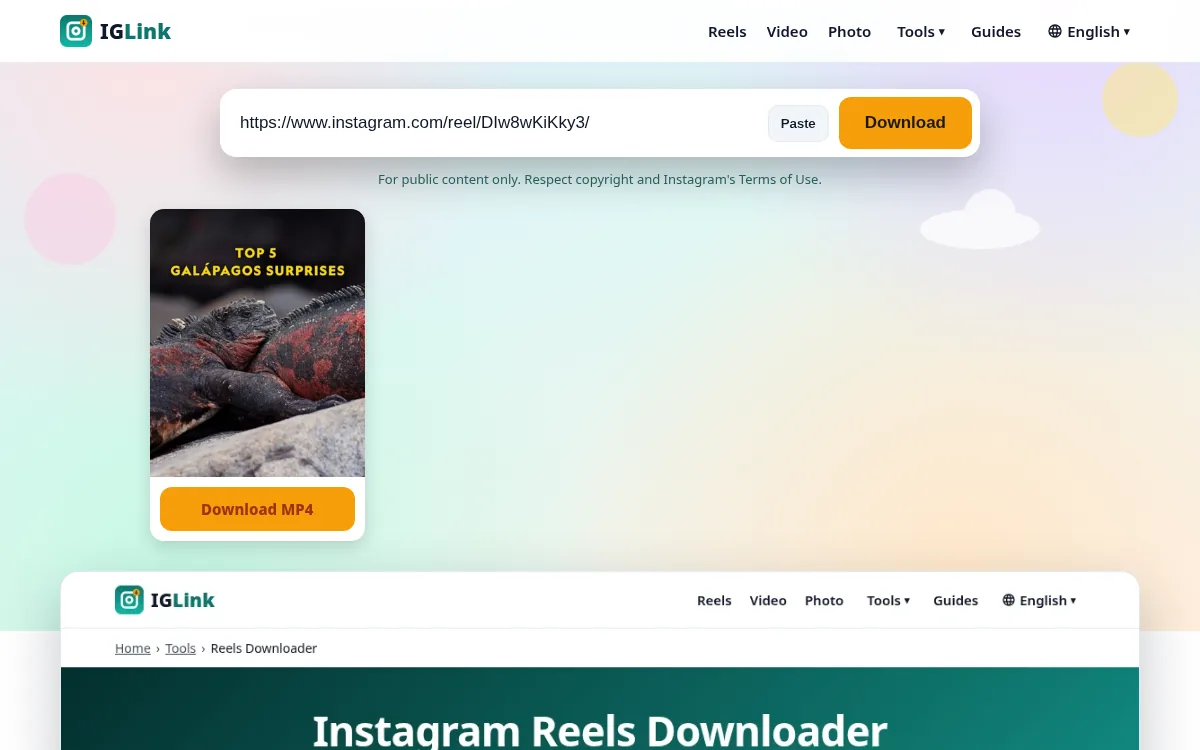
Pick MP4, JPG or MP3 from the result list. The file downloads straight to your device.
The same three steps work on phones and computers.
Open the Instagram app, tap Share → Copy Link, switch to Safari, paste into IGLink and tap Download. Use Share → Save Video / Save Image to put the file in Photos.
Copy the link from Instagram, open Chrome, paste it here and download. Files land in your Downloads folder and appear in Gallery or Files.
Copy the link from instagram.com or the desktop app, paste it into IGLink in Chrome, Edge, Firefox or Safari, then save the file to your computer.
IGLink only works with public posts. Ask the owner to make the post public, or save from an account you can already view while logged into Instagram yourself.
On iPhone, long-press the Download button and choose Download Linked File, or tap Share → Save Video after opening the file.
Check the link is complete, the post still exists, and it is not age-restricted or deleted.
Some source files are muted. Try another Reel, or use the Audio tool when the video track includes AAC audio.